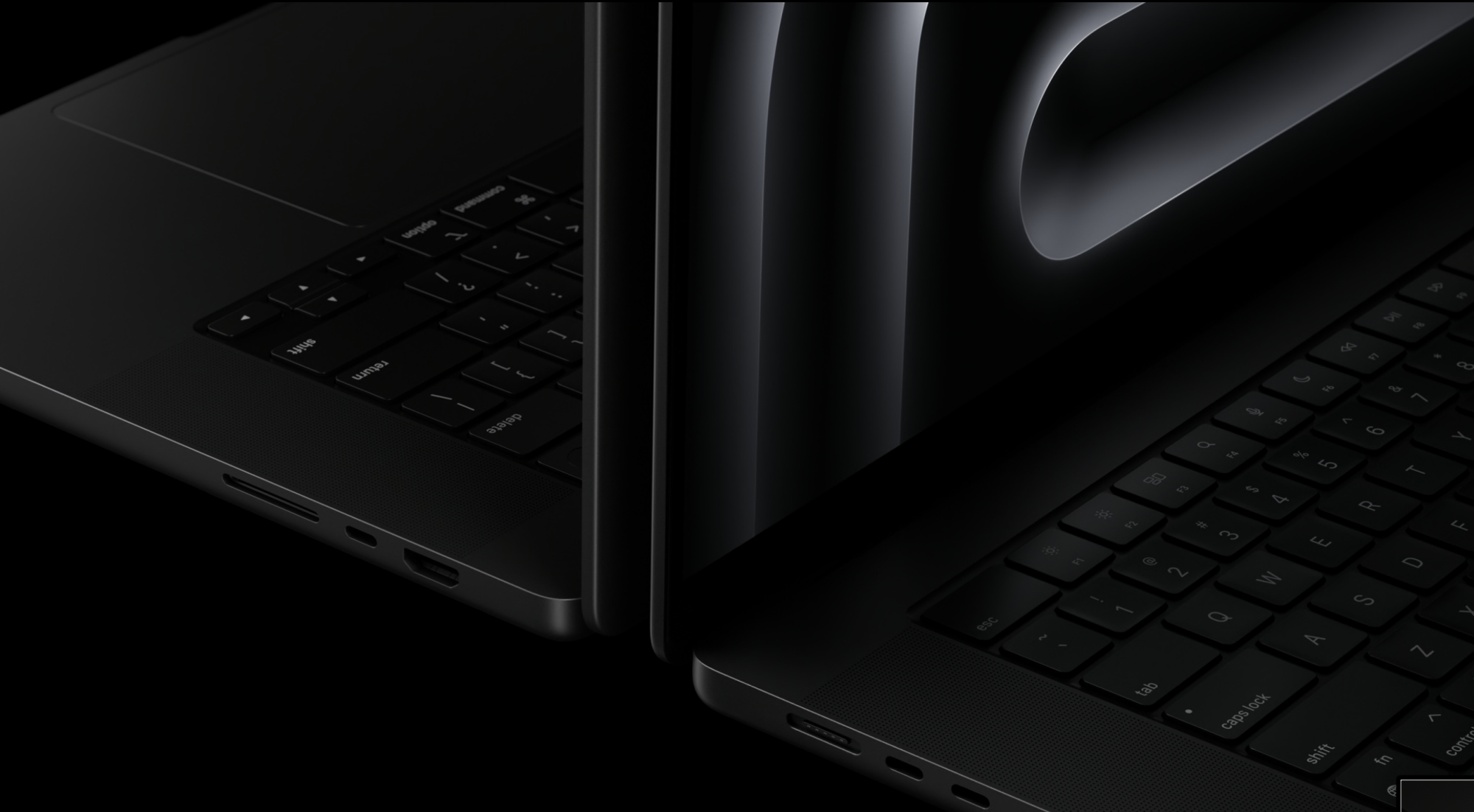
Live Wallpaper Mac: How to Set Any Video as Your Wallpaper
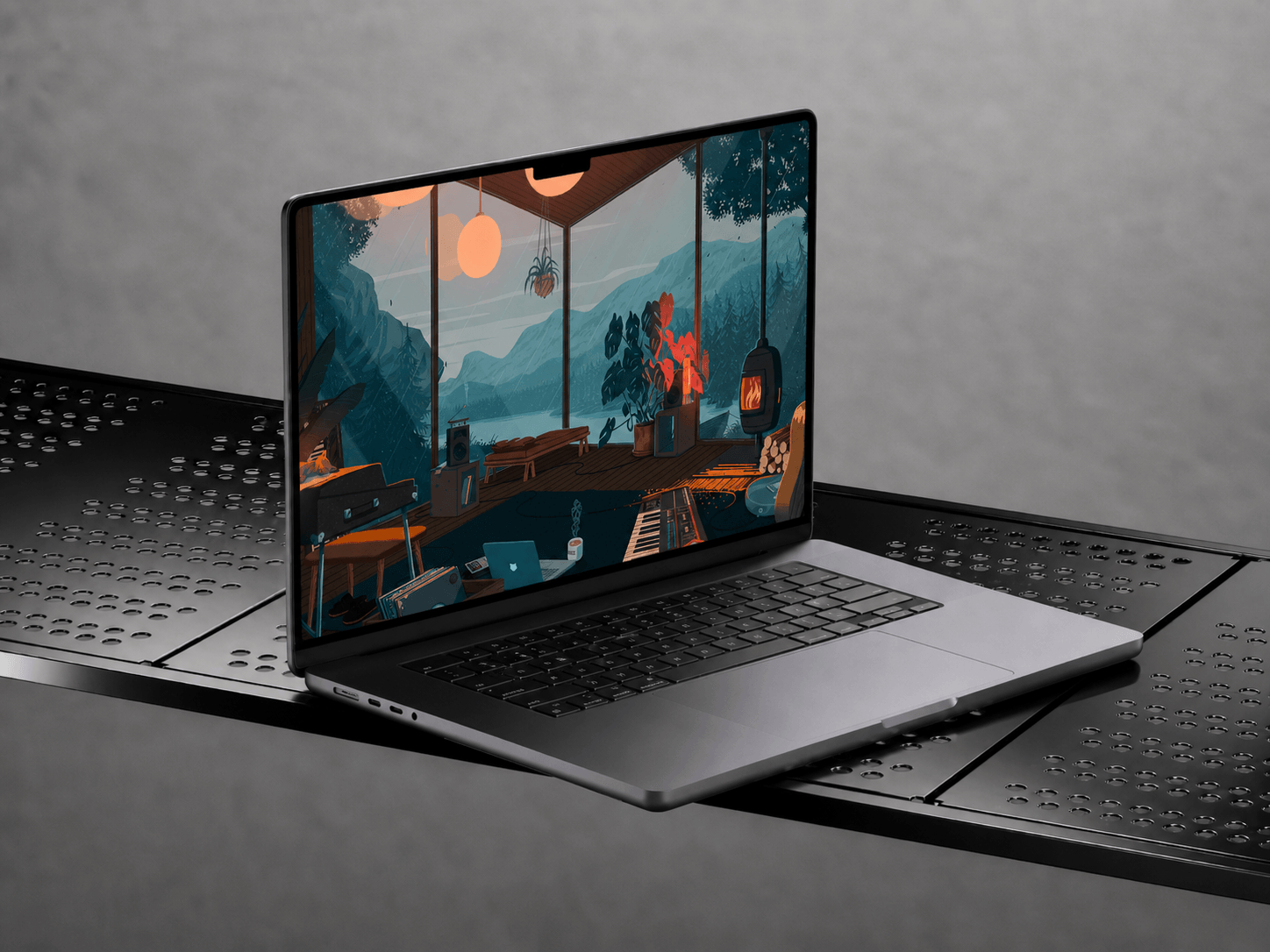
Set any video as a live wallpaper on Mac with Wallper. Get 4K live wallpapers, Lock Screen support, low CPU usage, and a growing community-powered gallery.
Your Mac wallpaper does more than fill empty space. It sets the mood every time you open your laptop, sit down at your desk, or unlock your screen.
A good wallpaper can make your Mac feel calm, focused, cinematic, or completely personal. But a live wallpaper does something more: it adds motion.
Rain moves softly in the background. Clouds drift across the screen. A dark gradient shifts slowly behind your windows. A city glows at night. Your desktop feels less static and more alive.
The problem is simple: macOS still does not make it easy to set any video as your wallpaper. You can choose photos, colors, and dynamic wallpapers, but there is no simple native button for using an MP4, a 4K video, or a custom animated wallpaper as your real desktop background.
That is why Wallper exists. It brings live wallpapers to Mac in the way many users always expected them to work: clean, smooth, lightweight, and deeply integrated with the macOS experience.
What Is a Live Wallpaper on Mac?
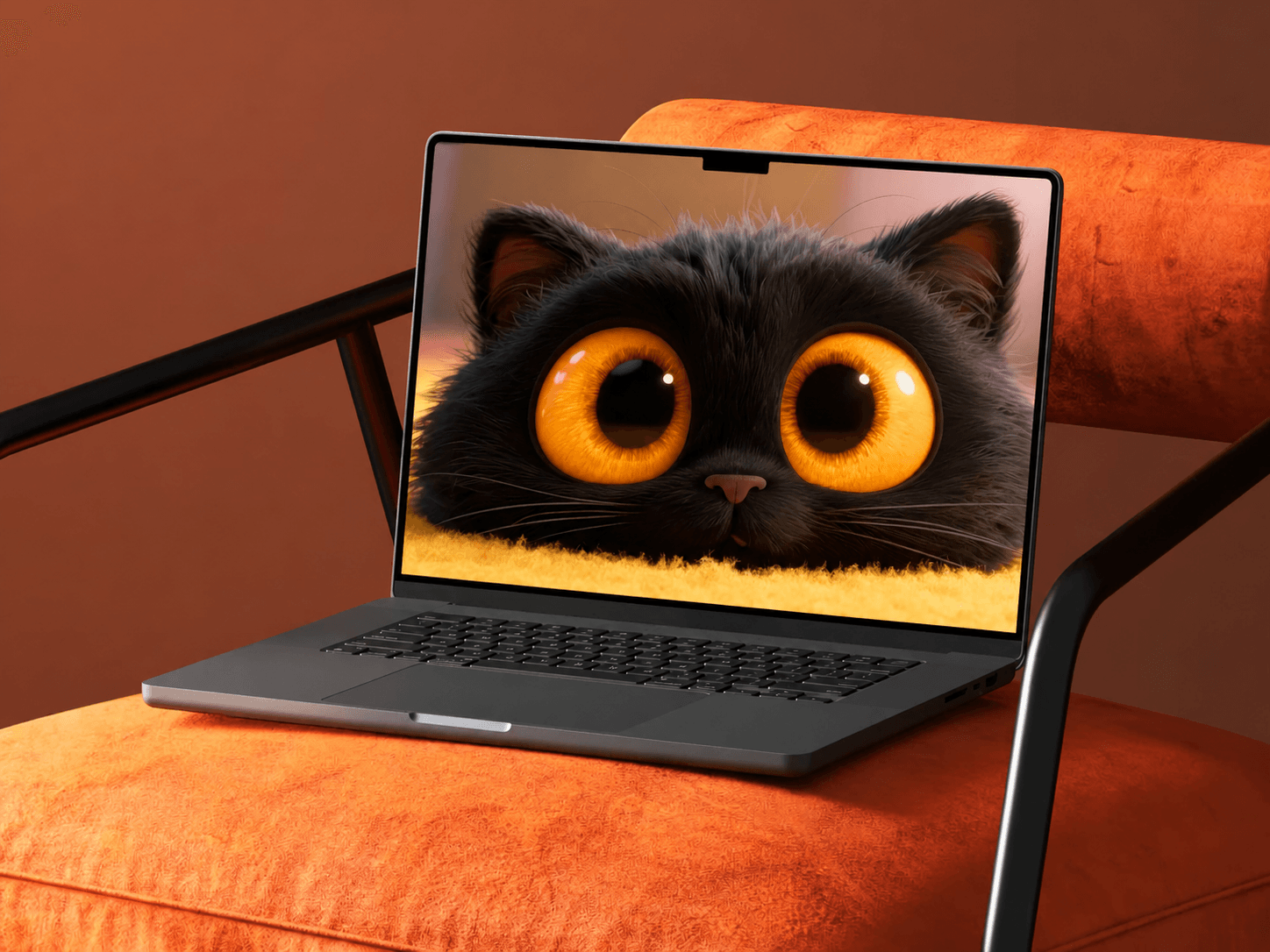
A live wallpaper is a moving background that plays behind your desktop. People describe it in different ways:
-
Live wallpaper Mac
-
Video wallpaper Mac
-
Animated wallpaper Mac
-
Moving wallpaper Mac
-
MP4/4K live backgrounds
The idea is always the same: instead of a still image, your Mac background has motion. It can be subtle, like slow clouds, or cinematic, like a city at night. The best live wallpapers do not distract you; they simply make your Mac feel more personal.
Can You Set a Video as a Wallpaper on Mac?
Not directly through the normal macOS wallpaper settings. macOS lets you change backgrounds and use dynamic wallpapers, but it does not offer a simple way to set your own MP4 or MOV files as a live desktop wallpaper.
To do this properly, you need an app that feels native, stays lightweight, works with MacBook screens, and integrates with the Lock Screen.
Wallper was built for exactly that.
Meet Wallper
Wallper is a live wallpaper app for Mac that lets you set beautiful 4K video wallpapers on your desktop. It is not just a video player placed behind your apps; it is a complete experience.
-
Open Wallper.
-
Choose a wallpaper.
-
Set it.
A Growing Gallery of 4K Live Wallpapers
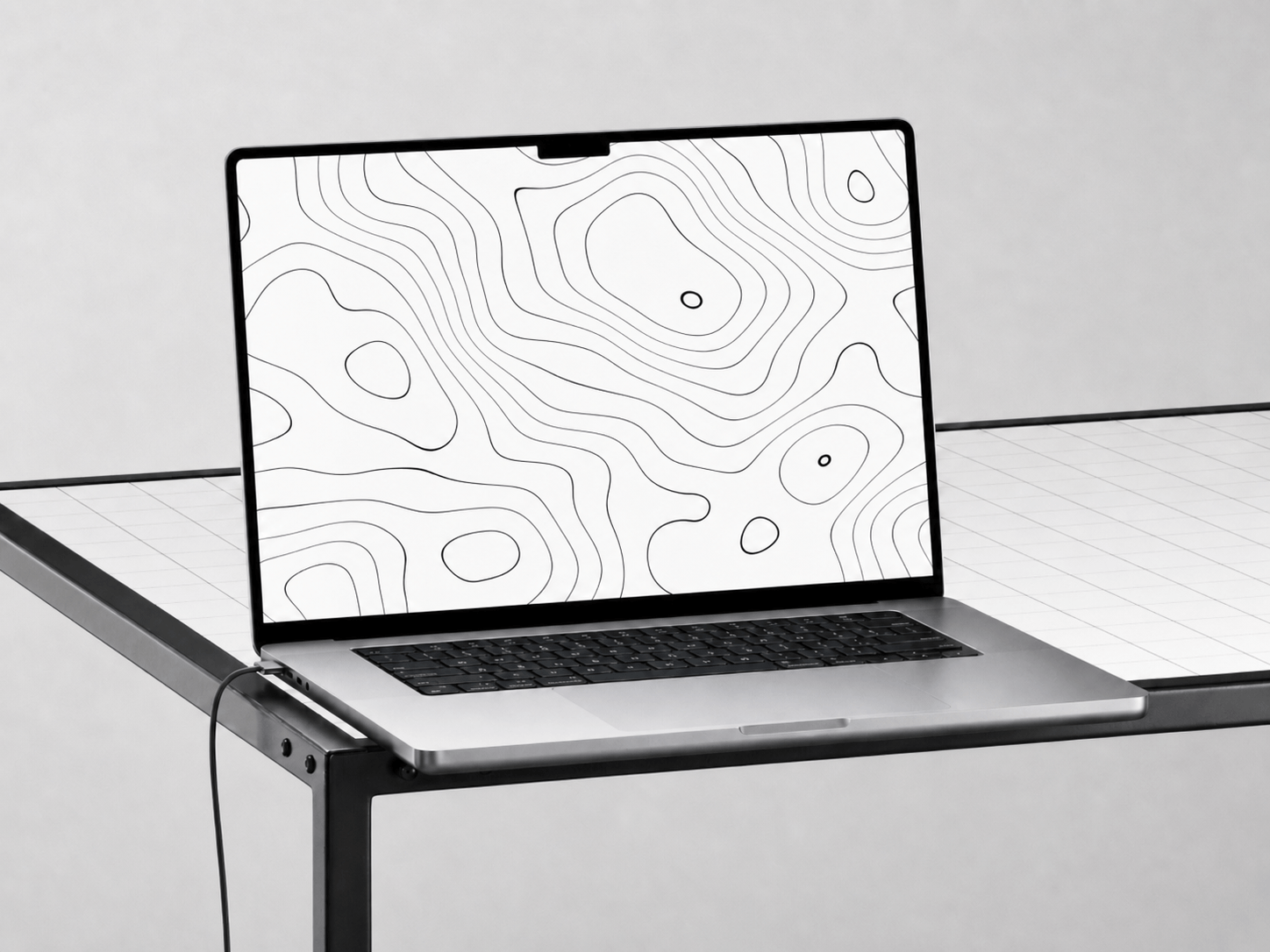
You no longer need to search random websites for video wallpapers. Wallper includes a large and regularly updated live wallpaper gallery featuring thousands of high-quality loops:
-
Nature & Space: Clouds, rain, galaxies.
-
Cinematic: Cities at night, car aesthetics.
-
Minimal & Abstract: Soft gradients, simple shapes.
-
Anime & Scenery: Expressive and artistic loops.
How to Set a Video as a Live Wallpaper on Mac
Step 1: Download Wallper
Download Wallper from the official website. No complicated setup, no terminal commands, just a normal Mac app.
Step 2: Choose a Wallpaper
Open the gallery and find a style that fits your setup. Use something calm for work or something expressive for a creative desktop.
Step 3: Preview and Set
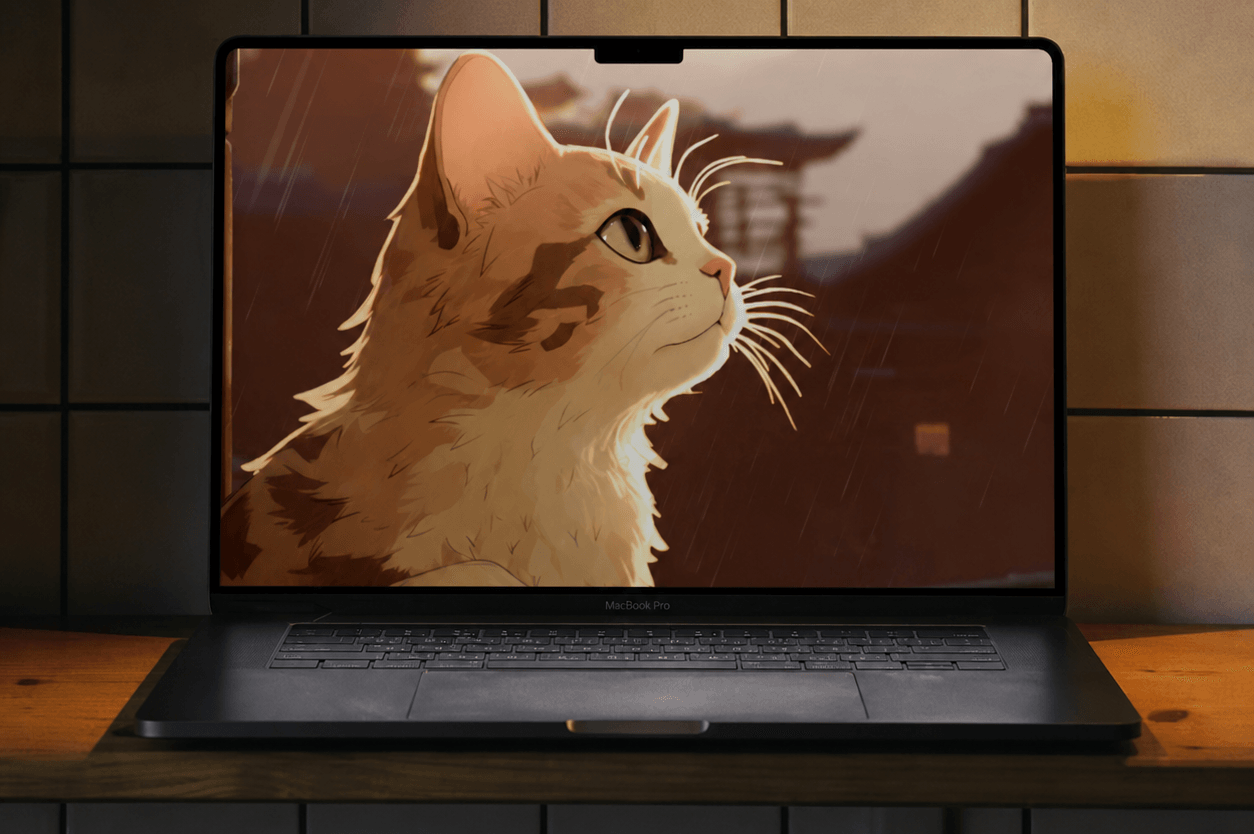
Click Set as Wallpaper. Wallper applies the live wallpaper to your desktop while keeping your apps, Dock, and icons perfectly usable. It feels natural because it is built to be part of the system.
Can You Use Your Own Video as a Wallpaper?
Yes. If you have your own video file, Wallper can set it as your background in seconds. It supports MP4 & MOV files, 4K video loops, and custom animations.
Built to Stay Lightweight
A live wallpaper should make your Mac look better, not slower.
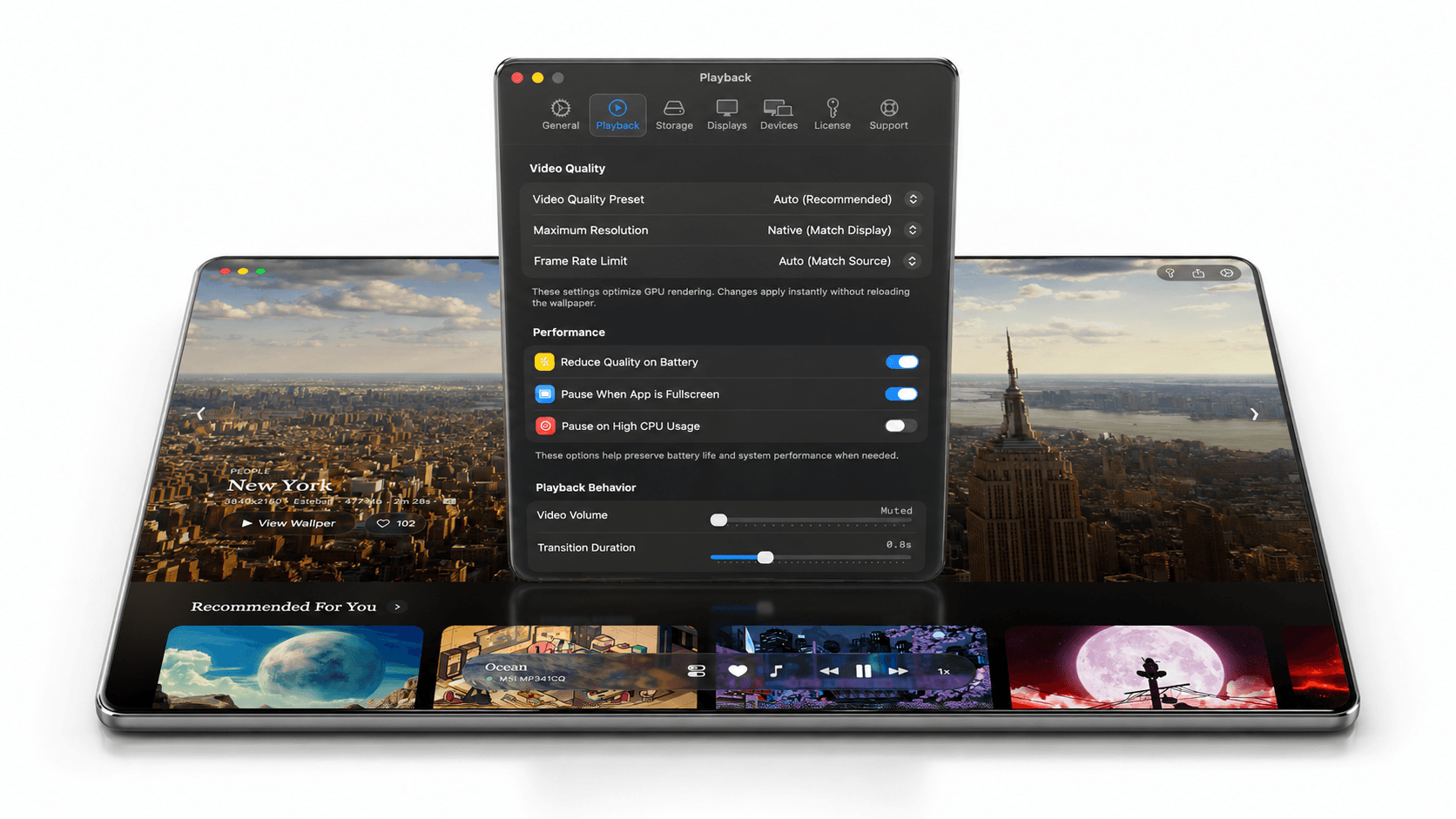
Performance First: Wallper is designed to use very little CPU in normal use, typically less than 1%.
Wallper also includes smart logic to save resources:
-
The wallpaper pauses when you are watching a movie or coding in full-screen.
-
It stops rendering when it is not visible.
-
You can set it to pause automatically when your MacBook is unplugged.
Native Lock Screen and Screensaver Integration
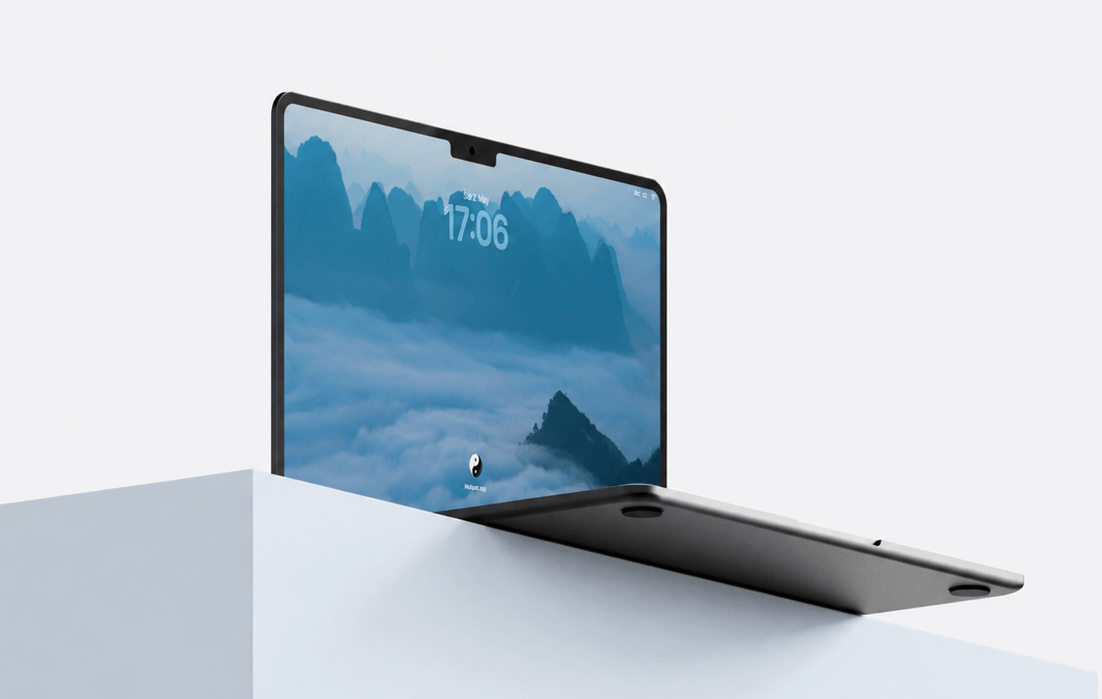
This is where Wallper stands out. It is the first and only app to bring live wallpapers to the Mac Lock Screen and screensavers in a way that feels native and seamless.
-
Connected Experience: Your desktop, Lock Screen, and screensaver feel like one visual flow.
-
No Hacks: You do not need to disable system protections or use strange terminal commands.
-
Secure: It works with macOS, not against it, keeping your system safe and stable.
Final Thoughts
macOS is beautiful, but it still lacks a native way to use any video as a live wallpaper. Wallper fills that gap with:
-
4K Gallery: Curated, community-powered content.
-
Low Resource Usage: Optimized for MacBook battery life.
-
Native Feel: Lock Screen and Screensaver support.
Your desktop does not have to stay still.